

Official Class 4 Computers Revision Material: CBSE Class 4 Computer Science PowerPoint Presentation Notes
Explore reliable concept summaries and revision materials through the CBSE Class 4 Computer Science PowerPoint Presentation Notes. Tailored for Class 4 learners, utilizing these notes for Computers PowerPoint Presentation ensures thorough preparation and strengthens core academic definitions before final evaluations.
Chapter-wise Concept Summaries: PowerPoint Presentation
Access the complete concept summary PDF for PowerPoint Presentation below. Regular review of these targeted notes builds familiarity with complex Class 4 Computers themes and helps secure higher marks in final school evaluations.
CBSE Class 4 Powerpoint presentation. Learning the important concepts is very important for every student to get better marks in examinations. The concepts should be clear which will help in faster learning. The attached concepts will help the student to understand the chapter and score better marks in the examinations.
UNIT-4
POWERPOINT PRESENTATION
Power point is an application software that helps us in presentation that supports text, graphics, pictures and other multimedia. The default file extension of MS power Point 2010 is .pptx.
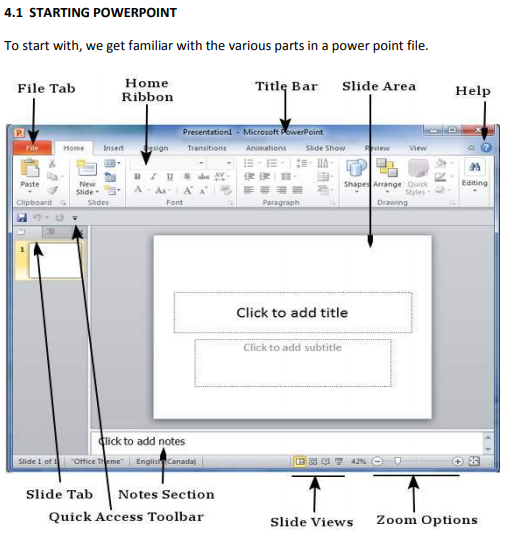
File Tab: The file tab helps us to manage our power point file.
Ribbon: The Ribbon is composed of three components:
→Tabs: They form the top part of the ribbon. Home, Insert etc. are some tabs.
→Groups: The group organizes related commands. Eg. Commands related to fonts, size, alignment etc.
→Commands: Each group has commands in it.
Slide area: The Slide area helps us to add, edit texts and other multimedia in the slide.
Title bar: It appears at the top of the window where the file name can be found.
Slide view: The Slide view helps us to switch between PowerPoint views:
→Normal Layout view: In this, the page is displayed in normal view. This view lets us to edit individual slides and re-arrange them.
→Slide Sorter View: In this, the slides are displayed as matrix. This view lets us to re-arrange slides but not edit them.
→Reading view: This view is similar to a slide show view.
4.1.1 CREATE A NEW FILE
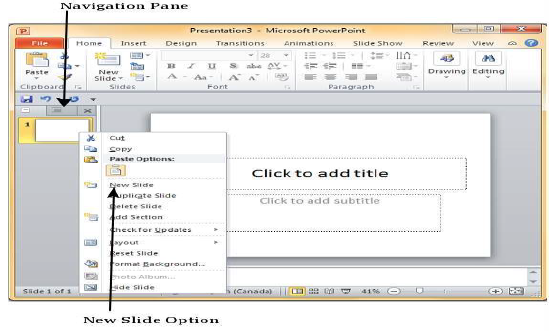
To create a new slide, go to file>New or right click on the navigation pane and select New Slide or press CTRL + N.
4.2 FORMATTING A PRESENTATION
PowerPoint lets us to format the presentation according to our needs and thereby enable us to create customized and impressive presentations.
4.2.1 CHANGING THE FONT
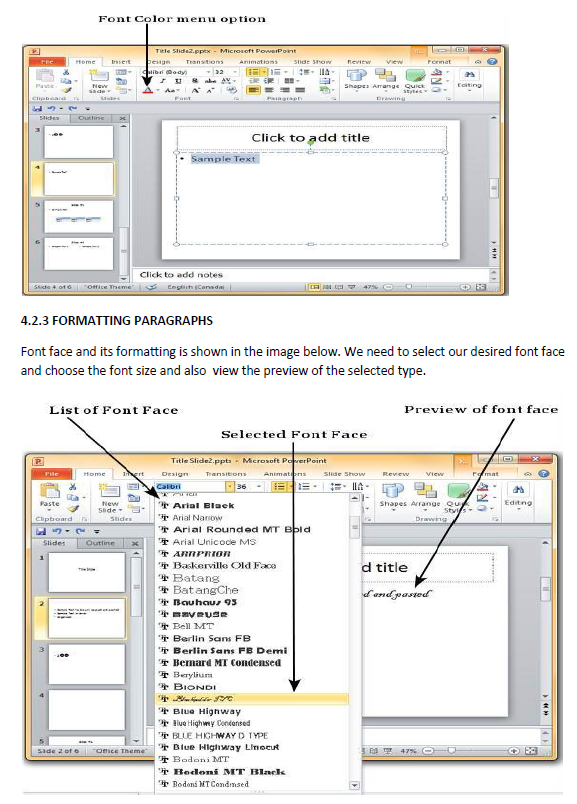
The font management is shown below:
We can choose from the menu or right click on any text to format it.
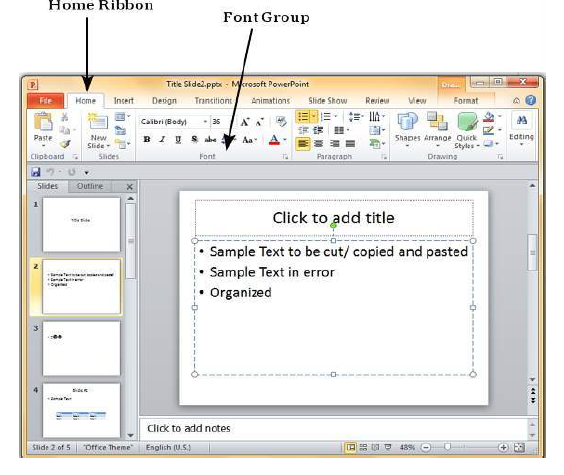
4.2.2 CHANGINGTHEFONT SIZE,STYLE ,COLOR
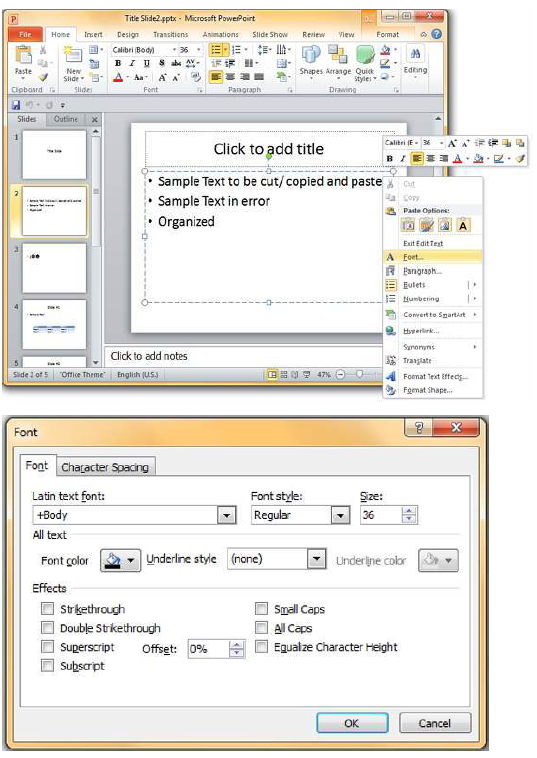
The above image shows the Font dialog that helps us in formatting font size, style and colour.
4.2.4 CHANGING TEXT ALIGNMENT
PowerPoint allows various text alignments to organize our content.
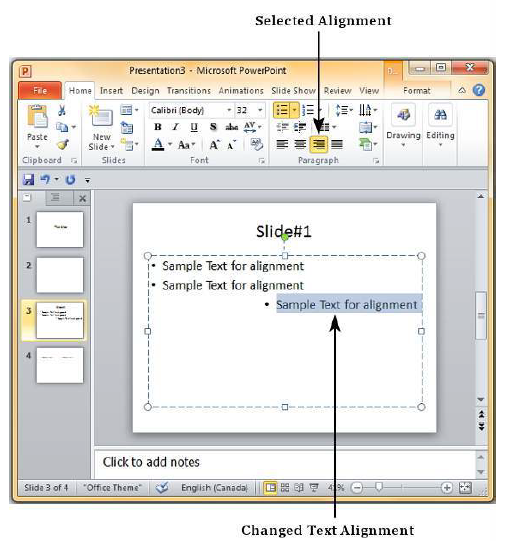
For example the text in the above example is aligned right.
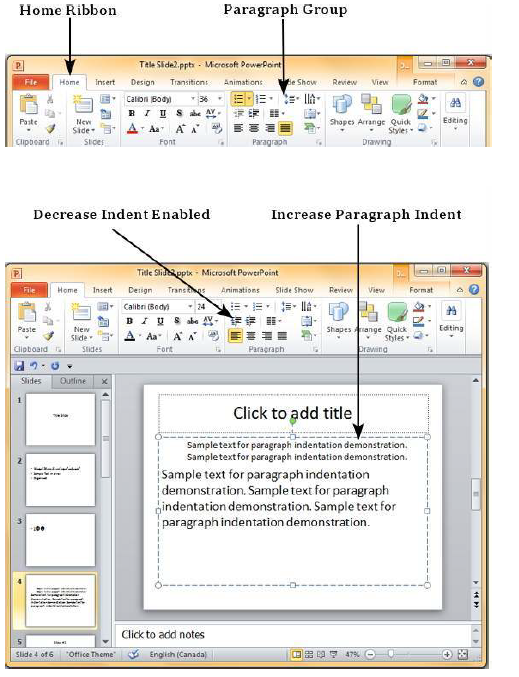
Paragraph Indentation:
Paragraph Indentation helps us to present our data in a visually appealing manner.
4.2.5 MODIFYING LINE SPACING
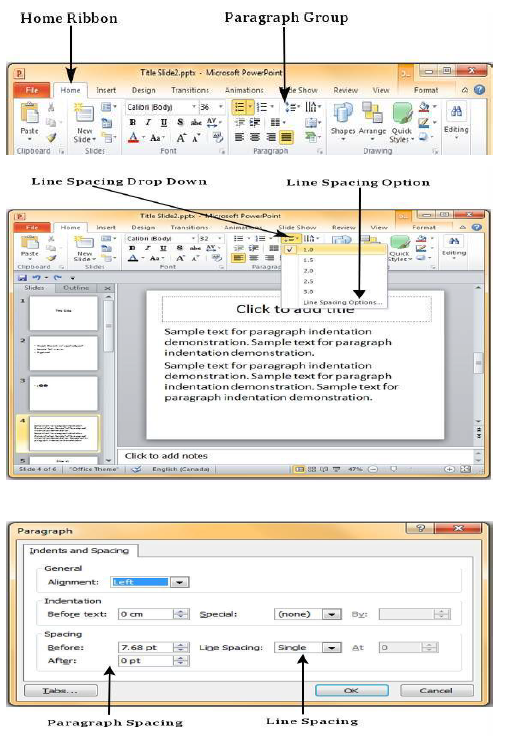
PowerPoint offers line spacing option to help us change the space between lines of text.
4.2.6 CREATING BULLETED AND NUMBERED LISTS
To create Bullet and Numbering, we need to right click on the area where we need to insert the bullets or numbering and then choose the desired bullet or number.
4.2.7 COPYING FORMATTING
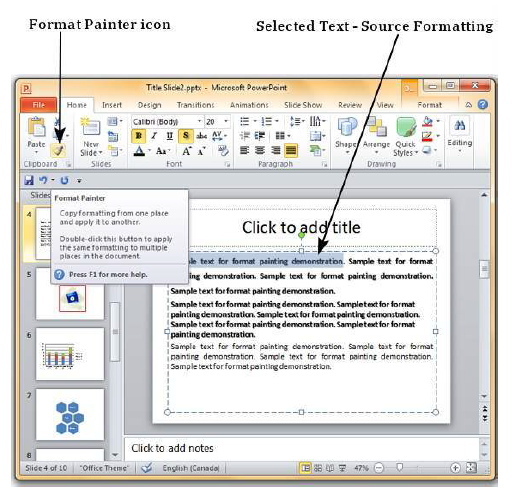
One of the most power and useful feature of the PowerPoint is the Format Painter tool. Once we have selected a particular format which fits our need, it helps us to copy the format to a series of presentations.
4.3 INSERT MENU AND OTHER MULTIMEDIA CONTENTS
PowerPoint allows us to insert multimedia in our slide. It allows us to insert two types of pictures: Clipart – the ones that are online picture collections and can be searched from the clipart and the other is Picture: the ones that are available in our computer.
4.3.1 IMAGES : In order to insert or add images in your powerpoint slide select Picture option under Insert menu and browse and select the desired image to be inserted from your computer

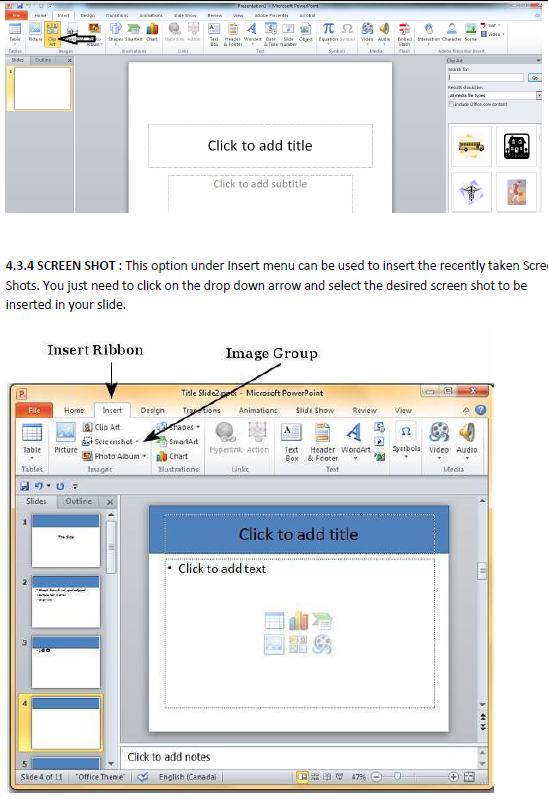
4.3.3 CLIP ART : Microsoft Powerpoint provides some pre-defined category wise basic images that can be used by the user directly by choosing Clip Art option under Insert menu as shown below on the right side
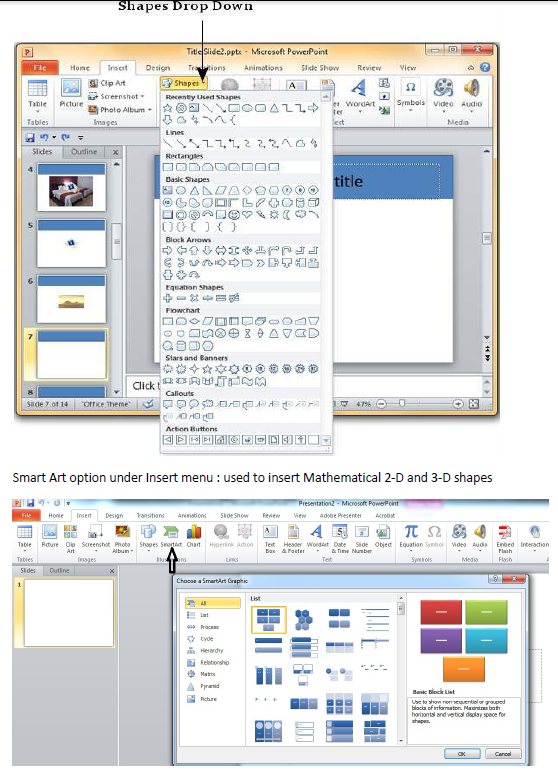
4.3.5 SHAPES AND SMART ART : Microsoft Powerpoint provides some important mathematical and geometrical shapes to be used in powerpoint slides.
Shapes option under Insert menu : used to insert basic geometrical and other shapes
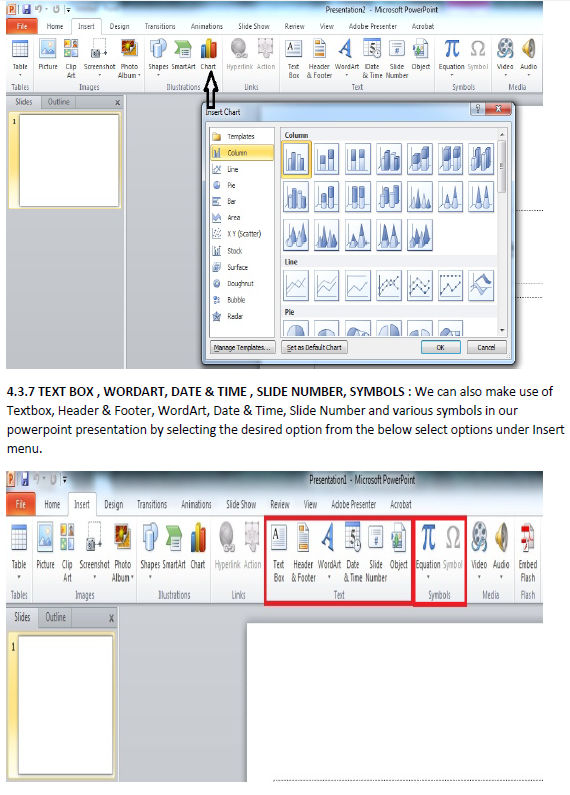
4.3.6 CHART : You can also insert various types of mathematical charts in your presentation
We can also insert video and audio in our slide.
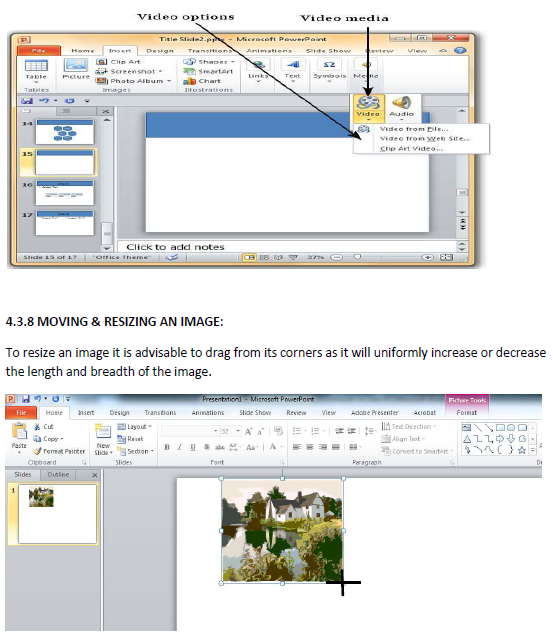
An in order to move an Image just selects the image and drags and moves the image while pressing the left mouse button.
4.4 SLIDE SHOW MENU
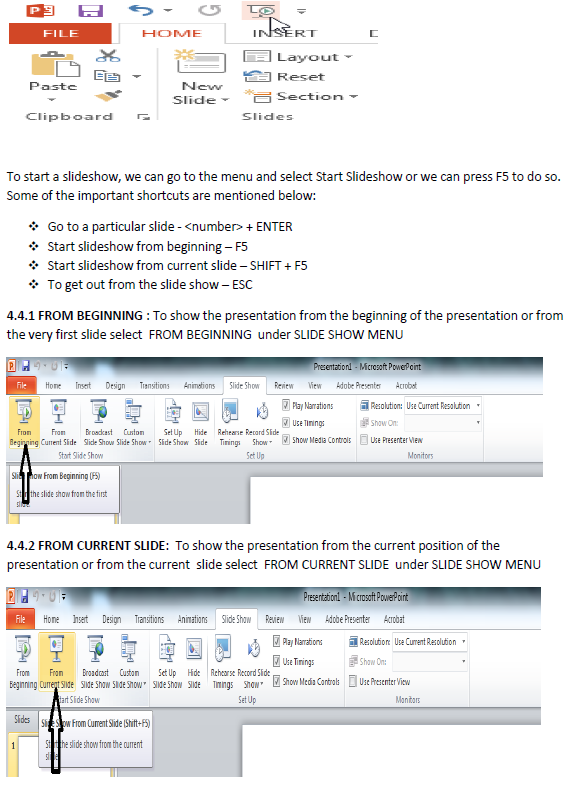
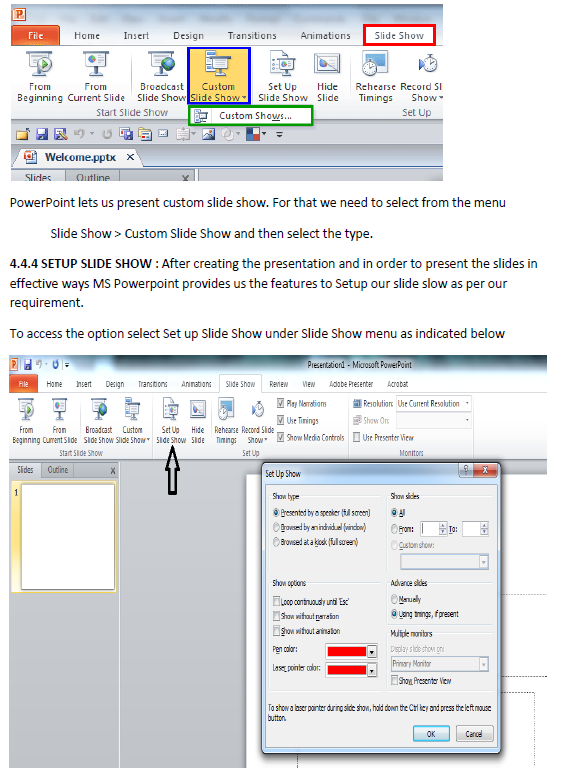
4.4.3 CUSTOM SLIDE SHOW
EXERCISE
Q 1. MS PowerPoint is a/an............................. software.
Q 2. The default file extension of MS PowerPoint 2007/2010/2013 is .................... . Q 3. Write about the uses of PowerPoint.
Q 4. PowerPoint allows various text alignments to organise our data. (True/False)
Q 5. How can we insert pictures and audio in PowerPoint?
Q 6. What is the function of the format painter tool?
Q 7. The shortcut to start slideshow from beginning is ......................... .
Q 8. The shortcut to get out from the slide show is ............................... .
Q 9. What are the two types of pictures we can insert in PowerPoint?
Q 10. An individual page in a PowerPoint presentation is called a .................. .
LAB WORK
1. Open MS Powerpoint and write Five sentences about yourself in five different slides and save the file with your name on the Desk
2. Open the file that you have just created add two more slides having one-one sentence about your parents and save the file with the name My Family in D: drive.
3. Open the file that you have just created and increase the font size of normal text to 16 ,and heading to 24 , font style for heading is Times New Roman and for normal text it is Calibri and save the file with the name MyFile in a folder
4. Create a powerpoint presentation having two sildes , write Five points (1 to 5) about your best friend on one slide and five points (bulleted) about your brother/siste
5. Create a presentation to display Ten basic facts about your country. All the slides must have name of the place and at least one image of that place.
Note : Name of the place must be written using WordArt. All the slides must have slide number and should also display date and time during the Slid Show. Next slide will come after 3 seconds only.
Please click the link below to download CBSE Class 4 Powerpoint presentation.
PowerPoint Presentation Concepts and Summary for Class 4 Computers
Key Concepts and Summary for Class 4 Computers PowerPoint Presentation
Access structured revision notes for PowerPoint Presentation designed in alignment with the latest CBSE curriculum for Class 4 Computers. These summaries help clarify core themes and support effective daily study.
NCERT-Aligned Chapter Summary and Notes
Cross-reference your comprehension with comprehensive NCERT solutions for Class 4 to ensure absolute clarity across all sub-topics in this chapter.
Next Steps in Your Exam Preparation
Follow up your revision by attempting the interactive online Computers MCQ test and practice worksheets for this chapter to verify your mastery. All platform resources are free to access.
FAQs
You can download the teacher prepared revision notes for CBSE Class 4 Computer Science PowerPoint Presentation Notes from StudiesToday.com. These notes are designed as per 2026-27 academic session to help Class 4 students get the best study material for Computers.
Yes, our CBSE Class 4 Computer Science PowerPoint Presentation Notes include 50% competency-based questions with focus on core logic, keyword definitions, and the practical application of Computers principles which is important for getting more marks in 2026 CBSE exams.
Yes, our CBSE Class 4 Computer Science PowerPoint Presentation Notes provide a detailed, topic wise breakdown of the chapter. Fundamental definitions, complex numerical formulas and all topics of CBSE syllabus in Class 4 is covered.
These notes for Computers are organized into bullet points and easy-to-read charts. By using CBSE Class 4 Computer Science PowerPoint Presentation Notes, Class 4 students fast revise formulas, key definitions before the exams.
No, all study resources on StudiesToday, including CBSE Class 4 Computer Science PowerPoint Presentation Notes, are available for immediate free download. Class 4 Computers study material is available in PDF and can be downloaded on mobile.