

Download Class 8 Computer Science Concept Summaries: CBSE Class 8 Computer Science Flash Notes
Access comprehensive revision notes for Flash using the CBSE Class 8 Computer Science Flash Notes. Designed to align with the 2026-27 academic syllabus for Class 8 Computer Science, these concept summaries help students streamline their exam preparation and review complex topics efficiently.
Access Flash Notes and Study Material
Navigate directly to the revision notes for Flash using the digital viewer below. Each summary is structured to highlight high-weightage sections, allowing students to instantly access critical definitions and focus on core exam topics.



Converting an object to a symbol
• We select the object that we want to convert to a symbol. We open the dialog box of Symbol Properties, acceding to the menu Insert → New Symbol or just by pressing Ctrl + F8 or F8.
• Type a name of the symbol, which we are going to create.
• The only that remains is to select the type of symbol or behavior into which we convert our object. We can choose between Movie Clip, Button and Graphic..
• Click OK to create our symbol.
Introducing time line and its use in animation
The Timeline represents a simple mode of visualization. It consists of two parts:
1) The Frames that are limited by vertical lines (forming rectangles)
2) The Numbers of frames that allow us to know the assigned number of each frame, its duration and when it will appear in the movie.
Moreover, there are some tools on the bottom to work with Onion paper and its information about the Number of current frame (1 in the image), the frame Speed (12.0 in the image) and
the Time of the movie (0.0 in the image).
On the definition level, “the Timeline represents the succession of frames in the Time”. The Flash movie will not be only the frames that appear on the Timeline one after another in the order established by the same Timeline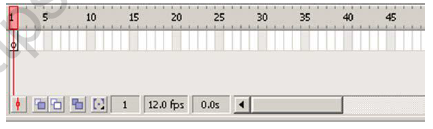
Frames and key frame
A frame represents the content of the movie at one moment of time. So far, an animation is nothing more as a succession of frames. You can control all these from the Timeline, but not all the frames have the same behavior and can be treated equally.
Key Frame They are frames with specific contents that are created to insert into the movie inexistent content. You can identify them by the black point that is in the centre or by the black vertical line.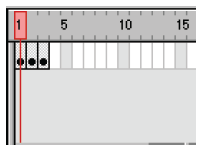
About layers (inserting a new layer, renaming & deleting layer)
A Layer could be defined as one independent movie of only one level. That is to say, one layer contains its own Timeline (with endless frames)
The objects that are at one Layer share a frame and due to this fact they can "get mixed up" among themselves. Frequently it could be interesting, but other times it is convenient to separate the objects in order that they do not interfere among them. For this, we will create as many layers as necessary.
Insert Layers : As its name indicates, it is used for Inserting layers in the present scene. It inserts normal layers (in the following point the different types from layers will be seen).
Erase Layer : Erase the selected layer.
Change Name: To change Name: of a layer, it is enough to double click the current name.
Layer Properties: If we double click the icon , we'll be able to access a panel with the properties of the layer we've clicked. We'll be able to modify all the options that we've previously commented and some more of lesser importance
Show /Hide Layers : This button allows us to show and hide all layers of the movie. It is very helpful when we have many layers and we want only to see one of them. In order to activate the view of a concrete layer (or to hide it) it is enough to click the corresponding layer in the point (or in the cross) that is under the icon "Show/Hide layers"
Block Layers : It blocks the edition of all the layers, so we'll not be able to edit them until unblocking them. In order to block or to unblock a concrete layer, we'll proceed like in the previous point, clicking on the point or icon "Lock" located in the current layer under the icon "Block Layers".
Types of animation (frame and tweened)
Frame-By-Frame Animation
Frame-by-frame animation is the way cartoons have been animated since the early days of animation. Using this method, the animator draws a figure or scene one frame at a time, drawing slight differences between each frame. When the frames are then viewed in rapid sequence, the differences between them create the illusion of
change or motion. In Flash, animators impose frame by frame animations over still images or other types of animation to avoid redrawing an entire scene for every animation frame.
SUMMARY
1. Flash 8 is a powerful tool created by Macromedia that has overcome the best expectations of its creators.
2. Flash has been made up in order to fix the great lack in the Internet: that is, Dynamism.
3. Dynamism does not imply only animations but rather interactive animations, which allow users to see the web as something attractive, not static
4. One of the main characteristics of Flash 8 is its simplicity, the straightforwardness in its use allows to create animations in an effective and quick way.
5. The Symbols come from objects that we've created using the tools that Flash 8 provides us.
6. When we create a symbol, Flash saves it to a library. Every time we use this object in a movie, it's converted into an instance.
7. Graphic symbols are the simplest and most obvious type of symbol. When you create a Flash movie, you create objects on the Stage. Some objects may remain still, such as backgrounds
8. A movie clip is like a movie within a movie that you can manipulate by using interactive controls (also called actions, created with ActionScript).
9. Button symbols create buttons — those little graphics that you click in Web sites to take you to other places on the site or the Internet.
10.The Timeline represents a simple mode of visualization. It consists of two parts: a
(a)The Frames that are limited by vertical lines and (b)The Numbers of frames that allow us to know the assigned number of each frame, its duration and when it will appear in the movie.
11.A frame represents the content of the movie at one moment of time.
12.Key Frame is frames with specific contents that are created to insert into the movie inexistent content.
13. A Layer could be defined as one independent movie of only one level. That is to say, one layer contains its own Timeline (with endless frames)
14.Insert Layers is used for Inserting layers in the present scene.
15.Frame-by-frame animation is the way cartoons have been animated since the early days of animation.
Download CBSE Revision Notes: Class 8 Computer Science Flash
About Flash Revision Notes
Access structured revision notes for Flash designed in alignment with the latest CBSE curriculum for Class 8 Computer Science. These summaries help clarify core themes and support effective daily study.
How to Use These Revision Notes
Built using the official NCERT book for Class 8 Computer Science, these notes provide reliable academic guidance. Pair your summary review with our recommended NCERT solutions to master optimal problem-solving approaches.
Enhance Practice with MCQs and Worksheets
Wrap up your chapter revision by testing your knowledge against standard question formats. Everything on our platform is provided free of charge.
FAQs
You can download the teacher prepared revision notes for CBSE Class 8 Computer Science Flash Notes from StudiesToday.com. These notes are designed as per 2026-27 academic session to help Class 8 students get the best study material for Computer Science.
Yes, our CBSE Class 8 Computer Science Flash Notes include 50% competency-based questions with focus on core logic, keyword definitions, and the practical application of Computer Science principles which is important for getting more marks in 2026 CBSE exams.
Yes, our CBSE Class 8 Computer Science Flash Notes provide a detailed, topic wise breakdown of the chapter. Fundamental definitions, complex numerical formulas and all topics of CBSE syllabus in Class 8 is covered.
These notes for Computer Science are organized into bullet points and easy-to-read charts. By using CBSE Class 8 Computer Science Flash Notes, Class 8 students fast revise formulas, key definitions before the exams.
No, all study resources on StudiesToday, including CBSE Class 8 Computer Science Flash Notes, are available for immediate free download. Class 8 Computer Science study material is available in PDF and can be downloaded on mobile.