

Chapter-wise Worksheets for Class 7 Computer Science: Chapter 04 Microsoft Word
Explore structured practice materials through the CBSE Class 7 Computer Science Microsoft Word Part 2 Worksheet Set 01. Tailored for Class 7 learners, utilizing these Computer Science worksheets ensures thorough preparation and strengthens problem-solving accuracy before final school evaluations.
Practice Class 7 Computer Science Worksheets: Chapter 04 Microsoft Word
Navigate directly to the solved Computer Science worksheets using the digital viewer below. Each practice set includes detailed step-by-step solutions, allowing students to instantly cross-check their work and identify areas requiring further revision.
Multiple Choice Questions:
Question. The ____________ Group of Home tab allows us to change our text font style, size, color and many other elements.
a) Font
b) Paragraph
c) Styles
d) Editing
Answer : A
Question. After inserting a shape, a new tab will appear which is called _____________
a) Drawing Tools Format
b) Shape Tools Format
c) Drawing Shapes Format
d) None
Answer : A
Question. ___________ means draw a horizontal line underneath the letters
a) Bold
b) Italic
c) Underline
d) None
Answer : C
Question. To select a whole word, ___________ click on it.
a) Single
b) Double
c) Triple
d) None
Answer : B
Question. ___________ Option means that the text is shown like it was marked with a highlighter pen.
a) Font Color
b) Text Color
c) Text Highlight Color
d) All of Above
Answer : C
Question. Write the shortcut keys for the following
1. To Cut the selected text Ctrl + X
2. To Paste the copied/cut contents Ctrl + V
3. To Increase the font size Ctrl + [
4. To Underline the Text Ctrl + U
5. To change the case of Selected Text Shift + F3
6. For Centre Alignment Ctrl + E
7. For double line spacing Ctrl + Shift + D
8. To Replace the text Ctrl + H
9. To Undo the last operation Ctrl + Z
10. To Insert Page Break Ctrl + Enter
Short Answer type Questions:
Question. Which are basic three font styles?
Answer : Three basic font styles are: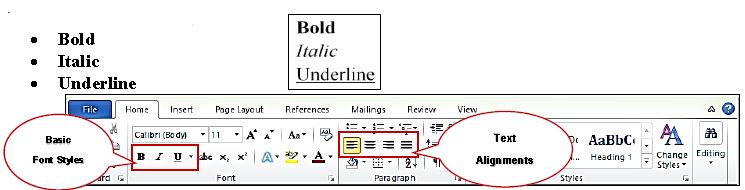
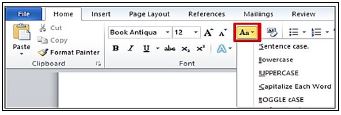
Question. How many Change Cases options are available in MS Word? Write their names?
Answer : There are five Change Case options in MS Word which are given below:
• Sentence case
• Lowercase
• UPPERCASE
• Capitalize Each Word
• Toggle case
Question. How can we insert page break in MS word?
Answer : Page breaks are used in MS Word to insert a new page into a document. The shortcut key Ctrl + Enter can be used to insert a page break in MS Word. Page breaks can also be inserted using the Insert tab.
Question. What are Headers and Footers in MS word?
Answer : The Header and Footer are the important parts of our document. Header appears in the top margin of our document, while the footer appears in the bottom margin of the page. The header and footer usually include information such as page number, date, author's name, and so on. The text in the header and footer appears on every page of the document. Insert tab is used to insert headers and footers.

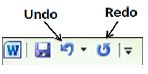
Question. Write about UNDO command?
Answer : It reverses the action that we have performed while editing. If we make an error in our document then we can correct it by click on the Undo command, it will remove the last thing we did. Ctrl+Z shortcut is used to perform Undo operation in MS Word. Undo command is also available on the Quick Access Toolbar.
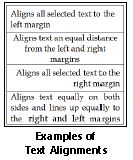
Question. How many alignments are available in MS Word? Write their names and shortcut keys?
Answer : Alignment determines the appearance and orientation of the edges of a paragraph. There are four types of alignment in Word which are as follows:
• Left Alignment - Ctrl+L Shortcut Key
• Center Alignment - Ctrl+E Shortcut Key
• Right Alignment - Ctrl+R Shortcut Key
• Justified Alignment - Ctrl+J Shortcut Key
Long Answer type Questions:
Question. Write about the options available in Font group of Home tab in MS Word.
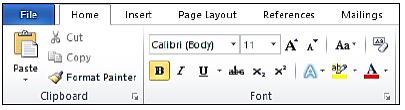
Answer : The Font group of the Home tab is used to format document text. Formatting helps us to change the look of our document. The main options for this group are:
• Font Face and Font Size:
• Font style - Bold, Italic, Underline
• Font Color
• Text Highlight color
• Text Effects
• Change Text Case
Question. What is WordArt? How will you insert WordArt in a Word document?
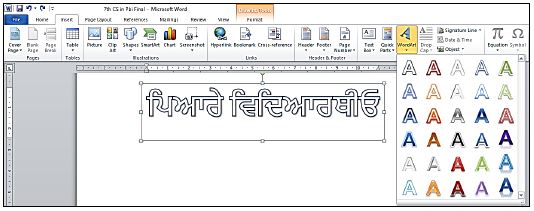
Answer : WordArt is used to insert special text-effects in word documents. When we enter WordArt into our document, it becomes an object. Word art is used to decorate documents or to draw special attention from the viewers.
We can insert WordArt into our documents by clicking on the WordArt option in the Text group of the Insert tab.
Question. Write about Clipboard group options of Home tab in MS Word.
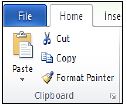
Answer : The Clipboard group is the first group in the Home tab of Microsoft Office. This group has four options:
• Paste: It is used to paste the copied/cut contents.
• Copy: It is used to copy the selected contents.
• Cut: It is used to move/cut the selected contents.
• Format Painter: It is used to copy the formatting applied on the selected text.
CBSE Class 7 Computer Science Worksheets for Chapter 04 Microsoft Word
Daily Practice Questions for Class 7 Computer Science
Access structured practice worksheets for Chapter 04 Microsoft Word aligned with the 2026 CBSE curriculum. These downloadable exercises for Class 7 Computer Science help students build accuracy and reinforce core concepts for upcoming school tests.
Detailed Answers for Class 7 Computer Science Chapter 04 Microsoft Word
Built using official NCERT guidelines for Class 7 Computer Science, these practice sheets provide reliable academic support. Cross-reference your completed work with our detailed solutions to learn standard answer-writing formats for CBSE exams.
Complete Your Chapter Revision
Follow up your worksheet practice by attempting the interactive online MCQ tests for Chapter 04 Microsoft Word to evaluate your execution speed. All printable assignments and revision sheets on our platform are updated for the 2026 session and available free of charge.
FAQs
You can download the latest chapter-wise printable worksheets for Class 7 Computer Science Chapter 04 Microsoft Word for free from StudiesToday.com. These have been made as per the latest CBSE curriculum for this academic year.
Yes, Class 7 Computer Science worksheets for Chapter 04 Microsoft Word focus on activity-based learning and also competency-style questions. This helps students to apply theoretical knowledge to practical scenarios.
Yes, we have provided solved worksheets for Class 7 Computer Science Chapter 04 Microsoft Word to help students verify their answers instantly.
Yes, our Class 7 Computer Science test sheets are mobile-friendly PDFs and can be printed by teachers for classroom.
For Chapter 04 Microsoft Word, regular practice with our worksheets will improve question-handling speed and help students understand all technical terms and diagrams.