

Download Class 12 Informatics Practices Practice Worksheets
Access comprehensive chapter-wise worksheets for Java Gui Programming using the CBSE Class 12 Informatics Practices Java Gui Programming Revision Worksheet. Designed to align with the 2026-27 academic syllabus for Class 12 Informatics Practices, these printable practice sets help students reinforce key concepts and improve their overall exam readiness.
Access Java Gui Programming Practice Papers and Solutions
View or download the dedicated CBSE Class 12 Informatics Practices Java Gui Programming Revision Worksheet resource below. Engaging with these practice papers under focused study conditions ensures continuous academic progress and mastery of the 2026-27 curriculum for Java Gui Programming.
CBSE Class 12 Informatics Practices Java GUI Programming Revision. CBSE issues sample papers every year for students for class 12 board exams. Students should solve the CBSE issued sample papers to understand the pattern of the question paper which will come in class 12 board exams this year. The sample papers have been provided with marking scheme. It’s always recommended to practice as many CBSE sample papers as possible before the board examinations. Sample papers should be always practiced in examination condition at home or school and the student should show the answers to teachers for checking or compare with the answers provided. Students can download the sample papers in pdf format free and score better marks in examinations. Refer to other links too for latest sample papers.
Page 1
Chapter 4: Java GUI Programming Revision Tour-II
Frame
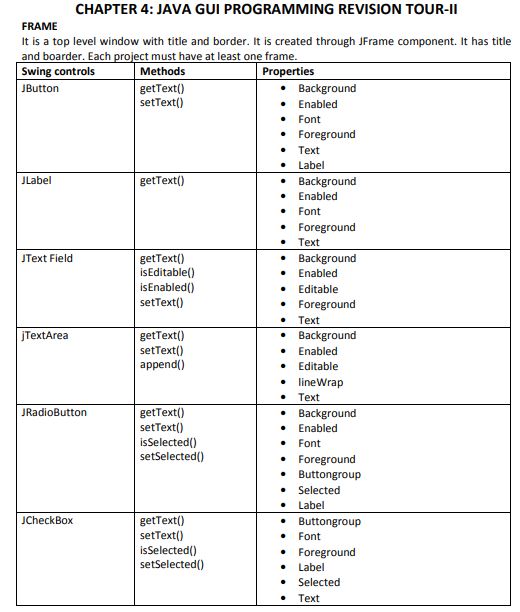
A frame is a top-level window containing a border and a title bar. We build it using the JFrame component in Java. Every desktop project requires at least one frame to execute.
| Swing Controls | Methods | Properties |
|---|---|---|
| JButton | getText()setText() | Background, Enabled, Font, Foreground, Text, Label |
| JLabel | getText() | Background, Enabled, Font, Foreground, Text |
| JTextField | getText()isEditable()isEnabled()setText() | Background, Enabled, Editable, Foreground, Text |
| JTextArea | getText()setText()append() | Background, Enabled, Editable, lineWrap, Text |
| JRadioButton | getText()setText()isSelected()setSelected() | Background, Enabled, Font, Foreground, Buttongroup, Selected, Label |
| JCheckBox | getText()setText()isSelected()setSelected() | Buttongroup, Font, Foreground, Label, Selected, Text |
Page 2
| Swing Controls | Methods | Properties |
|---|---|---|
| JList | getSelectedValue()getSelectedValues()getSelectedIndex()getSelectedIndices()setSelectedIndex()setSelectedValue() | Foreground, Model, SelectionMode, SelectedIndex, SelectedIndices |
| JComboBox | getSelectedItem()getSelectedIndex()setModel()setSelectedIndex()setSelectedItem() | Background, Buttongroup, Editable, Enabled, Font, Foreground, Model, SelectedIndex, SelectedItem, SelectionMode, Text |
| JTable | getSelectedRow()getRowCount()removeRow()addRow() | Model |
| JOptionPane | showMessageDialog() | N/A |
Sample Questions
Question 1. What is a button group? What all controls can you put in it?
Answer: In Java Swing, a ButtonGroup serves to construct a mutually exclusive collection of button controls. Consequently, selecting any single button in this set immediately turns off any other currently active button in the group. Usually, developers place JRadioButton controls within a button group to guarantee only a single radio choice can be checked. Although JCheckBox or JToggleButton controls can technically be placed in it, radio buttons represent the standard implementation.
In simple words: A button group makes sure that when you click one option, any other selected option in that same group is unchecked automatically, like choosing your gender on a form.
Exam Tip: Be sure to specify that while JRadioButton is the primary control added to a ButtonGroup, other button components like JCheckBox can also be included to achieve mutual exclusion.
Question 2. Write a statement to make jTextArea1 as un-editable.
Answer: To prevent user modifications to jTextArea1, execute the following Java statement:jTextArea1.setEditable(false);
In simple words: Run this single line of code to lock your text area so that users can only read the text but cannot type inside it.
Exam Tip: Always remember that the method is setEditable() (case-sensitive) and takes a boolean argument (true or false).
Question 3. Which control is to be used to select a country from the list of given countries?
Answer: To let a user choose a single nation from a pre-determined selection, developers typically implement either a JComboBox (which presents a drop-down menu) or a JList (which displays the options in a scrollable box list) control.
In simple words: You should use a drop-down box (JComboBox) or a list box (JList) so the user can easily click on their country from the options.
Exam Tip: If the design requires saving screen space, recommend JComboBox; if the user needs to see multiple countries on screen simultaneously, recommend JList.
Question 4. What will be displayed in jTextArea1: jTextArea1.setText("cbse\nFinal_Exam\tIP")
Answer: The output displayed in jTextArea1 will span two lines as follows:cbse
Final_Exam IP
Explanation: The string includes two escape sequences: the newline character (\n), which forces the phrase "Final_Exam" onto a fresh line directly below "cbse", and the tab character (\t), which places a horizontal indentation space between "Final_Exam" and "IP".
In simple words: The \n acts like pressing the Enter key to start a new line, and the \t acts like the Tab key to leave a big gap between words.
Exam Tip: Do not confuse escape sequences with standard text; always print the actual newline and horizontal gap instead of writing the literal letters "\n" and "\t" in your output layout.
Question 5. In a Recreation Park when a group arrives, the number of people in the group and whether the group wants to enjoy the Water Park or not is entered. Entry fees is Rs. 500 per person. The person can choose to play at Water Park by selecting the checkbox. Rides of Water Park will cost Rs. 250 extra per person. Write code for the following:
Question 5(i). On the click of command button ‘Calculate’, textfield for ‘Entry Fees’ should display Entry Fees per person * Number of people. If ‘Water Park’ checkbox is selected, textfield for ‘Water Park Charges’ should display Water Park Charges per person * Number of people. Textfield for ‘Total Amount’ should display sum of Entry Fees and Water Park Charges for all the people in the group.
Answer:
Here is the event handler code for the 'Calculate' button:int numberOfPeople = Integer.parseInt(peopleTF.getText());
double entryFeesTotal = numberOfPeople * 500.0;
double waterParkChargesTotal = 0.0;
entryTF.setText(String.valueOf(entryFeesTotal));
if (waterParkCB.isSelected()) {
waterParkChargesTotal = numberOfPeople * 250.0;
}
waterChargesTF.setText(String.valueOf(waterParkChargesTotal));
double grandTotal = entryFeesTotal + waterParkChargesTotal;
totalAmountTF.setText(String.valueOf(grandTotal));
In simple words: This code gets the number of people, calculates the entry fee at Rs. 500 each, adds Rs. 250 each if the Water Park checkbox is ticked, and then sums everything up for the final amount.
Exam Tip: Be sure to convert numeric input from textfields using Integer.parseInt() and update output textfields using String.valueOf() or empty string concatenation to prevent string mismatch errors.
Question 5(ii). Write Java code to clear all Textboxes on the click of ‘Clear’ button.
Answer:
To clear all input fields, text fields, and reset the checkbox when the 'Clear' button is clicked, execute the following commands:peopleTF.setText("");
entryTF.setText("");
waterChargesTF.setText("");
totalAmountTF.setText("");
waterParkCB.setSelected(false);
In simple words: This resets all the text fields to empty strings and unchecks the Water Park checkbox so the form is ready for a new calculation.
Exam Tip: Remember to also deselect checkboxes using setSelected(false) besides setting the text of text fields to "" when writing code for a clear button.
Question 5(iii). Write Java code to close the application on the click of ‘Exit’ button.
Answer:
To terminate and exit the Java application on clicking the 'Exit' button, use the following statement:System.exit(0);
In simple words: Use System.exit(0) to completely close down the application window when the user clicks Exit.
Exam Tip: Standard practice for terminating a Java application is using System.exit(0) where 0 signifies successful execution with no errors.
Free study material for Informatics Practices
Download Class 12 Informatics Practices Java Gui Programming Practice Worksheets
Practice Exercises for Class 12 Informatics Practices Java Gui Programming
Review targeted practice exercises for Class 12 Informatics Practices Java Gui Programming. Curated to match official CBSE guidelines, these printable problem sets support daily revision and improve overall test readiness.
Step-by-Step Solutions and Practice Guidelines
Designed around the official curriculum for Class 12 Informatics Practices, these practice sheets guarantee standard compliance. Reviewing step-by-step solutions after completion sharpens your accuracy and clarifies complex sub-topics within Java Gui Programming.
Enhance Speed with Online Practice
Follow up your worksheet practice by attempting the interactive online MCQ tests for Java Gui Programming to evaluate your execution speed. All printable assignments and revision sheets on our platform are updated for the 2026 session and available free of charge.
FAQs
You can download the latest chapter-wise printable worksheets for Class 12 Informatics Practices Java Gui Programming for free from StudiesToday.com. These have been made as per the latest CBSE curriculum for this academic year.
Yes, Class 12 Informatics Practices worksheets for Java Gui Programming focus on activity-based learning and also competency-style questions. This helps students to apply theoretical knowledge to practical scenarios.
Yes, we have provided solved worksheets for Class 12 Informatics Practices Java Gui Programming to help students verify their answers instantly.
Yes, our Class 12 Informatics Practices test sheets are mobile-friendly PDFs and can be printed by teachers for classroom.
For Java Gui Programming, regular practice with our worksheets will improve question-handling speed and help students understand all technical terms and diagrams.