

Class 12 Informatics Practices Practice Sheet: CBSE Class 12 Informatics Practices Html Lists Tables And Forms Worksheet
Explore structured practice materials through the CBSE Class 12 Informatics Practices Html Lists Tables And Forms Worksheet. Tailored for Class 12 learners, utilizing these Informatics Practices worksheets ensures thorough preparation and strengthens problem-solving accuracy before final school evaluations.
Download Html Lists Tables And Forms Worksheet PDF with Answers
View or download the dedicated CBSE Class 12 Informatics Practices Html Lists Tables And Forms Worksheet resource below. Engaging with these practice papers under focused study conditions ensures continuous academic progress and mastery of the 2026-27 curriculum for Html Lists Tables And Forms.
CBSE Class 12 Informatics Practices Html-II Lists Tables And Forms. CBSE issues sample papers every year for students for class 12 board exams. Students should solve the CBSE issued sample papers to understand the pattern of the question paper which will come in class 12 board exams this year. The sample papers have been provided with marking scheme. It’s always recommended to practice as many CBSE sample papers as possible before the board examinations. Sample papers should be always practiced in examination condition at home or school and the student should show the answers to teachers for checking or compare with the answers provided. Students can download the sample papers in pdf format free and score better marks in examinations. Refer to other links too for latest sample papers.
Page 1
HTML-II - Lists, Tables and Forms
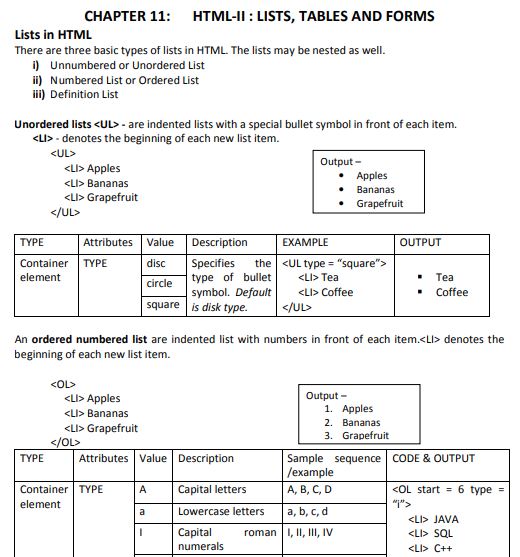
Lists in HTML: HTML supports three primary styles of lists, which can also be nested inside one another:
- Unordered or Unnumbered List
- Ordered or Numbered List
- Definition List
Unordered Lists (<ul>): This structure formats indented items with a descriptive bullet symbol positioned before each entry. The <li> tag is placed at the start of each individual list item.
Example:
<ul>
    <li>Apples</li>
    <li>Bananas</li>
    <li>Grapefruit</li>
</ul>
Output:
- Apples
- Bananas
- Grapefruit
| Type | Attributes | Value | Description | Example | Output |
|---|---|---|---|---|---|
| Container element | type | disc circle square | Specifies the bullet symbol type. Default is disc. | <ul type="square"> |
|
Ordered Lists (<ol>): This format organizes indented items sequentially with progressive numerical or alphabetical markers preceding each record. The <li> tag initiates each item in the sequence.
Example:
<ol>
    <li>Apples</li>
    <li>Bananas</li>
    <li>Grapefruit</li>
</ol>
Output:
- Apples
- Bananas
- Grapefruit
| Type | Attributes | Value | Description | Sample Sequence | Code & Output |
|---|---|---|---|---|---|
| Container element | type | A | Capital letters | A, B, C, D | <ol start="6" type="i">Output:
|
a | Lowercase letters | a, b, c, d | |||
I | Capital Roman numerals | I, II, III, IV | |||
i | Lowercase Roman numerals | i, ii, iii, iv | |||
1 | Arabic numerals (default) | 1, 2, 3, 4 | |||
start | value | Defines the initial starting value of the list. | <ol start="5"> starts counting from 5. |
Page 2
Definition Lists (<dl>): This style renders indented items with no preceding numerical indices or bullet markers. The <dt> tag specifies the term to define, and the <dd> tag contains the corresponding descriptive definition.
| Type | Attributes | Description | Code | Output |
|---|---|---|---|---|
| Container element | compact | Optimizes layout space when the defined terms are very brief. | <dl> |
|
Tables in HTML: The table system lets developers organize rich datasets - such as strings, formatted blocks, images, hyperlinks, input forms, and even nested tables - into structural grids of rows and columns.
<table>defines the outer boundaries of a table container.<tr>declares an individual horizontal row of cells.<thead>groups the header rows at the top of the table.<tfoot>defines summary or footer rows at the bottom.<tbody>encloses the core data rows of the table.<td>establishes a standard data cell holding values.<th>specifies a bold, centered column header cell.<caption>designates an explanatory title or label for the table.
Cell Spacing and Cell Padding: cellspacing controls the structural gap between individual adjacent cells in a grid. Conversely, cellpadding establishes the inner buffer space separating the cell's outer border from its internal data contents.
Rowspan vs Colspan: rowspan allows an individual cell to stretch vertically across multiple rows. On the other hand, colspan extends a cell horizontally to merge across multiple columns.
HTML Forms: HTML forms act as gateways for collecting user information and inputs. Using interactive graphical components called controls, forms receive values and forward them to servers. Key interactive controls include:
- Buttons (Submit button, Reset button, generic Push buttons)
- Checkboxes
- Radio Buttons
- Combo Boxes / Drop-down menus
- Password fields
Page 3
Text Inputs: These controls (including single-line text fields and multiline text areas) allow users to type alphanumeric values directly.
Creating Forms:
| Attributes | Value | Description |
|---|---|---|
| Name | String | Declares a unique identification string for the form. |
| Action | Script or URL | Determines the processing script, destination email, or server URL where form data is sent. |
| Method | Get | Appends form input data directly to the URL query string as visible variables. |
| Post | Transmits form data securely within the HTTP request body. | |
| Form | Triggers a new page view using the specified URL. |
Examples:
<form method="get" action="https://www.yahoo.com">
Standard secure transmission method:
<form method="post" action="mailto:kvs@gmail.com">
Embedding input controls:
<input type="text" name="Vidyalaya_Name">
<input type="submit" name="Button1" value="Submit">
Very Short Answer Type Question (1 Marks)
Question 1. Differentiate between <UL> and <OL> tags.
Answer: An <ul> tag creates a bulleted unordered list with no sequential hierarchy, while an <ol> tag sets up a numbered ordered list with sequential numbering or lettering.
In simple words: <ul> is for bullet points where the order doesn't matter, and <ol> is for numbered lists where steps or sequences are important.
Exam Tip: Be sure to mention that <ul> uses bullets (like disc, circle, square) and <ol> uses sequential markers (like numbers, roman numerals, or alphabet).
Question 2. What is wrong with following coding?
<OL type= “a” start = “d”>
Answer: In an ordered list, the start attribute must be assigned an integer representing the starting index rather than a literal alphabetical character. For the letter 'd', the correct start value is 4.
In simple words: The start attribute only understands numbers. If you want a list to start at 'd', you must use start="4".
Exam Tip: Remember that even if you change the list's numbering style to letters or Roman numerals with type, the start attribute always requires a numeric value representing its position.
Question 3. What is the difference between Cellpadding and Cellspacing ?
Answer: The cellpadding attribute controls the inner gap between a cell's border and its interior text data, while cellspacing defines the outer distance separating neighboring cells from each other in a table grid.
In simple words: Cellpadding is the padding inside the cell to keep text from touching its borders. Cellspacing is the gap between the boxes of the table cells themselves.
Exam Tip: A great way to remember this is: "padding" is inside a single cell, and "spacing" is the empty space between different cells.
Question 4. Which attributes are used to give border to a table?
Answer: The thickness and visibility of lines on a table are defined using the border attribute inside the <table> element.
In simple words: You use the border attribute to draw lines around your table.
Exam Tip: Setting border="1" makes borders visible; omitting it or setting border="0" renders the table without borders.
Question 5. What for are Rowspan and Colspan attributes used?
Answer: The rowspan attribute is used to merge a single cell vertically across multiple parallel rows. Conversely, the colspan attribute extends a cell horizontally to merge across multiple adjacent columns.
In simple words: Rowspan stretches a cell up and down across multiple rows, while colspan stretches a cell left and right across multiple columns.
Exam Tip: Ensure you associate rowspan with vertical expansion (rows) and colspan with horizontal expansion (columns) to secure full marks.
Question 6. What is the use of Form in HTML?
Answer: HTML forms are used to capture user input, such as contact details or choices, and transmit that collected data to a server or script for processing.
In simple words: A form is a section on a webpage containing input boxes, checkboxes, or buttons that lets users submit their details to a website.
Exam Tip: Always mention that forms act as interactive bridges to collect client-side inputs and submit them to server-side scripts using HTTP methods.
Question 7. What is the difference between radio button and check box control?
Answer: Radio buttons allow the user to select only a single option from a mutually exclusive set, while checkboxes permit the selection of multiple independent options concurrently.
In simple words: Radio buttons let you choose only one option (like Yes or No), but checkboxes let you tick as many items as you want (like selecting multiple hobbies).
Exam Tip: Emphasize "mutually exclusive single choice" for radio buttons and "multiple independent choices" for checkboxes to satisfy examiners.
Question 8. What is the role of ALIGN attribute of <TABLE> tag?
Answer: The align attribute within the <table> element controls the horizontal placement of the entire table relative to the surrounding webpage body, allowing it to align to the left, right, or center.
In simple words: The align attribute tells the webpage whether to put the entire table on the left side, right side, or middle of the screen.
Exam Tip: Note that in modern HTML5, visual layout properties like table alignment are handled using CSS (like margin: auto for centering), but in classic HTML, the align attribute is used.
Short Answer Type Question (2 Marks)
Question 1. What is the use of <TD> and <TR> tag?
Answer: The <tr> element declares a horizontal row within an HTML grid, whereas the <td> element defines an individual cell inside that row to store text, numbers, or images.
In simple words: <tr> is used to make a new horizontal row in a table, and <td> is used to create a box (cell) inside that row where you put your actual text or numbers.
Exam Tip: Explain that <td> must always reside inside a parent <tr> container, as a data cell cannot exist without a row structure.
Question 2. How is spacing in cells of table controlled?
Answer: Cell dimensions and grid separation are managed by configuring the cellpadding (the distance between cell text and its borders) and cellspacing (the space separating neighboring cells) attributes within the <table> element.
In simple words: You control the spacing in table cells by using cellpadding for padding inside the cell and cellspacing for the gap between different cells.
Exam Tip: Be sure to mention both attributes by name, as they are the distinct controls used in HTML table structures.
Question 3. Name the attributes used for following?
a) Setting the cell width. b) Setting cells background colour.
c) Changing the cell span. d) Aligning cell contents vertically.
Answer: The attributes matching each configuration are:
a) cell width: width
b) cell background color: bgcolor
c) merging or spanning cells: rowspan and colspan
d) vertical alignment of content: valign
In simple words: To change a cell's width, use width. To change its color, use bgcolor. To span across cells, use rowspan or colspan. To align text vertically, use valign.
Exam Tip: Always list all four parts clearly matching their sub-letters (a, b, c, d) so the examiner can grade your answer rapidly.
Question 4. How would you indent a single word and put a square bullet in front of it?
Answer: To format a single word with an indentation and a square bullet, create an unordered list using the <ul> tag with the type="square" attribute containing one list item.<ul type="square">
<li>Word</li>
</ul>
In simple words: Wrap the word in a <li> tag inside a <ul type="square"> block to indent it and give it a square bullet point.
Exam Tip: Provide the exact HTML code snippet alongside your verbal explanation to demonstrate your practical coding knowledge.
Question 5. Write code to produce following HTML tables?
Answer: Here are the HTML codes to construct both layouts:
HTML Code for Table 1 (using rowspan):<table border="1">
<tr>
<td rowspan="2">A</td>
<td>B</td>
</tr>
<tr>
<td>C</td>
</tr>
</table>
HTML Code for Table 2 (standard grid):<table border="1">
<tr>
<td>A</td>
<td>B</td>
<td>C</td>
</tr>
<tr>
<td>D</td>
<td>E</td>
<td>F</td>
</tr>
</table>
In simple words: Use rowspan="2" on cell A in Table 1 so it covers two rows vertically. For Table 2, create a standard table with three <td> columns in each of the two <tr> rows.
Exam Tip: Don't forget to include the border attribute (e.g., border="1") in your table tags so that the cell dividers are visible in the browser.
Question 6. Give two attributes of Table element of HTML.
Answer: Two common attributes of the <table> element in HTML are:
1. border (used to set the thickness of table cell borders).
2. bgcolor (used to define a background color for the table).
In simple words: Two common settings for a table are border to show lines, and bgcolor to change the background color of the table.
Exam Tip: You can also specify other valid table attributes such as cellspacing, cellpadding, width, or align as correct answers.
Free study material for Informatics Practices
Download Class 12 Informatics Practices Html Lists Tables And Forms Practice Worksheets
Practice Exercises for Class 12 Informatics Practices Html Lists Tables And Forms
Review targeted practice exercises for Class 12 Informatics Practices Html Lists Tables And Forms. Curated to match official CBSE guidelines, these printable problem sets support daily revision and improve overall test readiness.
Step-by-Step Solutions and Practice Guidelines
Built using official NCERT guidelines for Class 12 Informatics Practices, these practice sheets provide reliable academic support. Cross-reference your completed work with our detailed solutions to learn standard answer-writing formats for CBSE exams.
Enhance Speed with Online Practice
Consistent engagement with these exercises builds familiarity with recurring exam themes. If specific areas within Html Lists Tables And Forms cause trouble, utilize our dedicated NCERT solutions for Class 12 Informatics Practices to clear up doubts immediately.
FAQs
You can download the latest chapter-wise printable worksheets for Class 12 Informatics Practices Html Lists Tables And Forms for free from StudiesToday.com. These have been made as per the latest CBSE curriculum for this academic year.
Yes, Class 12 Informatics Practices worksheets for Html Lists Tables And Forms focus on activity-based learning and also competency-style questions. This helps students to apply theoretical knowledge to practical scenarios.
Yes, we have provided solved worksheets for Class 12 Informatics Practices Html Lists Tables And Forms to help students verify their answers instantly.
Yes, our Class 12 Informatics Practices test sheets are mobile-friendly PDFs and can be printed by teachers for classroom.
For Html Lists Tables And Forms, regular practice with our worksheets will improve question-handling speed and help students understand all technical terms and diagrams.