

Computer Science Concept Notes for Class 6: Word Processing Ms Word
Explore reliable concept summaries and revision materials through the CBSE Class 6 Computer Science Word Processing Ms Word Notes. Tailored for Class 6 learners, utilizing these notes for Computer Science Word Processing Ms Word ensures thorough preparation and strengthens core academic definitions before final evaluations.
Download Word Processing Ms Word Revision Notes PDF
View or download the dedicated Word Processing Ms Word revision resource below. Engaging with these structured concept notes daily ensures continuous academic progress and mastery of the 2026-27 curriculum for Computer Science.
CHAPTER-2
WORD PROCESSING (MS WORD)
Microsoft word or MS-Word (often called word) is a graphical word processing program by Microsoft Corporation. The purpose of the MS Word is to allow the users to type and save documents. Similar to other word processors, it has various helpful tools to make documents.
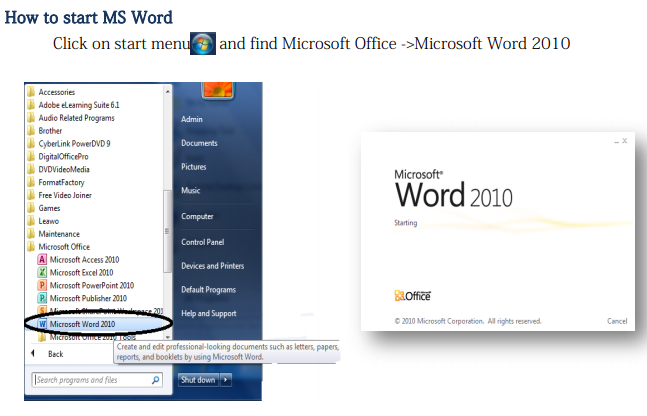
You will see the application window of MS Word as below
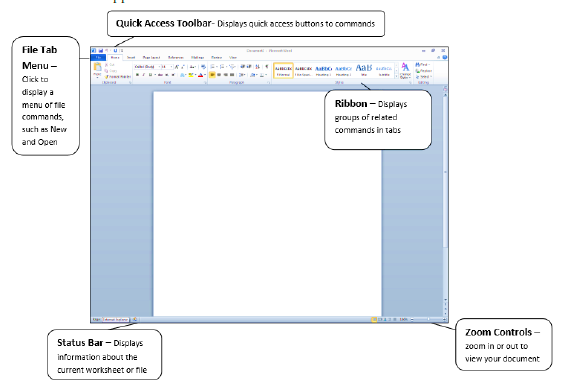
After starting MS Word, you will see the menu bar items as below

Working with Headers and Footers
Headers and footers can help keep longer documents organized and make them easier to read. Text entered in the header or footer will appear on each page of the document. Let us see a demonstration.
1. Click on Insert menu
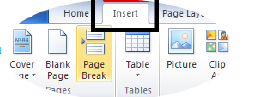
2. Find Header and Footer

3. Click on Header and select Blank (Three Columns) option
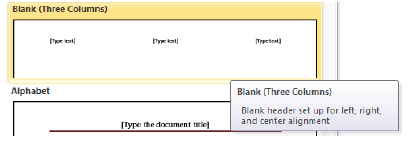
The Design tab will appear on the Ribbon, and the header or footer will appear in the document.
Here you can place Date & Time, Page number, Picture Clip Art and other desired information.
When you have finished editing, click Close Header and Footer in the Design tab, or hit the Esc key.

After you close the header or footer, it will still be visible, but it will be locked. To edit it again, just double-click anywhere on the header or footer margin and it will become unlocked for editing.
To insert the date or time into a header or footer:
1. Double-click anywhere on the header or footer to unlock it. The Design tab will appear.
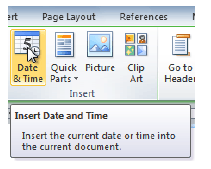
2. From the Design tab, click the Date & Time command.
3. Select a date format in the dialog box that appears.
4. Place a check mark in the Update Automatically box if you would like it to always reflect the current date. Otherwise, it will not change when the document is opened at a later date.
5. Click OK. The date and time will appears in the document.
Paragraph
MS Word includes many features designed to assist you in placing text on the page just the way you want it. You can align text left to right using tabs or alignment options, or you can adjust your text vertically using line spacing options. Following are some of the available paragraph formatting choices.
Aligning Text:
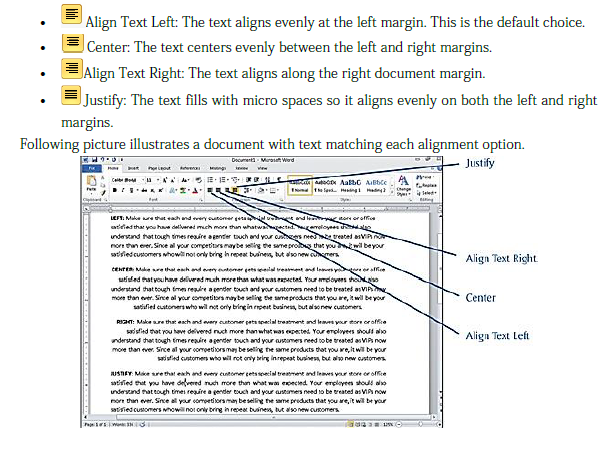
Alignment arranges the text to line up at one or both margins, or in center between the margins. Alignment applies to entire paragraphs. You can align text to the left, right, or center, or you can justify your text, which means that the text becomes evenly spaced across the page from the left margin to the right margin. Apply alignment options by selecting the text you want to align, then choosing Home > Paragraph and clicking one of the following alignment buttons:
Adding Paragraph Borders
Word includes borders that you can apply to any size block of text, which draw the reader’s eye to specific areas for a “quick read.”
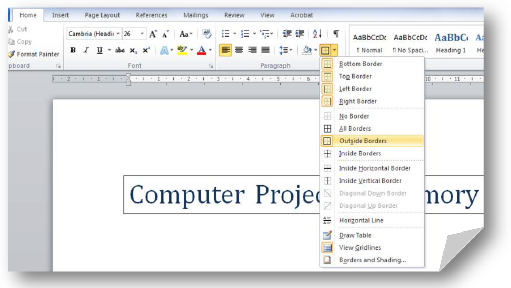
A border can cover the entire area or be any combination of lines around the text, such as above and/or below the text. Select the text you want bordered and choose Home > Paragraph.
Click the drop-down arrow next to the Borders button, which displays a list of options like the one you see in following picture. Choose the border option you want.
Shading Text
Shading helps you distinguish headlines and important passages, such as sidebars, by creating a screen, which is typically light gray shading against the standard black text.
Click anywhere in the paragraph you want shaded and choose Home > Paragraph > Shading. Choose a color from the resulting Shading gallery, as shown in following picture. Adding dark blue shading caused Word to change the font color to white.
Question. In order to save a Word document as a web page you need to ?
a) put the appropriate graphics and links on the document
b) save the document in simple text format
c) use your web browser as an editor and save as URL
d) Save as HTML
Answer : A
Question. The quickest and easiest way in Word, to locate a particular word or phrase in a document is to use the _________ command ?
a) Replace
b) Find
c) Lookup
d) Search
Answer : B
Question. What is the default file extension for all Word documents ?
a) WRD
b) TXT
c) DOC
d) FIL
Answer : C
Question. If you type a word that is not in Word's dictionary, a wavy _________ underline appears below the word. ?
a) red
b) green
c) blue
d) black
Answer : A
Question. Microsoft Office is ?
a) Shareware
b) Public-domain software
c) Open-source software
d) An application suite
Answer : D
Question. What does the Ctrl + I shortcut key accomplish in Ms Word ?
a) It converts selected text into the next larger size of the same font
b) It adds a line break to the document
c) It makes the selected text bold
d) It applies Italic formatting the selected text
Answer : D
Question. What type of software is used for creating letters papers and other documents ?
a) database
b) Word Processor
c) Spreadsheet
d) Operating Program
Answer : B
Question. Which of the following shortcut key is used to check spelling ?
a) F1
b) F2
c) F7
d) F9
Answer : C
Question. To save an existing file with a new name or to a new location, you should use the _________ command ?
a) Save
b) Save and replace
c) Save as
d) New file
Answer : C
Question. What is the AutoSummarize feature used for in Word 2000 ?
a) It creates a 250 word, 500 word or 1000 word summary of the document
b) It adds Automatic headwers, bold and italic characters as well as automatic formatting of the document to give the look of a well summarized document
c) it summarizes the statistics of the document into a report such as total words, total characters, total pages, total paragraphs, file size
d) It identifies the key points in a document for your to share with others or quickly scan
Answer : A
Question. To print a document, press __________ then press ENTER ?
a) SHIFT + P
b) CTRL + P
c) ALT+ P
d) ESC + P
Answer : B
Question. The word processing task associated with changing the appearance of documents is ?
a) Writing
b) Formatting
c) Editing
d) Storing
Answer : B
Question. The blinking symbol on the computer screen is called the ?
a) mouse
b) hand
c) light
d) cursor
Answer : D
Question. What does Ctrl + B shortcut accomplish in Ms-Word ?
a) It converts selected text into the next larger size of the same font
b) It adds a line break to the document
c) It makes the selected text bold
d) It applies Italic formatting the selected text
Answer : C
Question. The ___________ button on the Quick Access Tollbar allows you to cancel your recent commands or actions ?
a) Search
b) Cut
c) Document
d) Undo
Answer : D
Question. Word processing, spreadsheet, and photo-editing are examples of _______. ?
a) application software
b) system software
c) operating system software
d) platform software
Answer : A
Question. The copy command saves to ?
a) the desktop
b) the clipboard
c) Microsoft Word
d) Paste
Answer : B
Please click the link below to download CBSE Class 6 Word Processing MS Word.
Download CBSE Revision Notes: Class 6 Computer Science Word Processing Ms Word
About Word Processing Ms Word Revision Notes
Review targeted chapter notes for Class 6 Computer Science Word Processing Ms Word. Built according to official CBSE guidelines, these summaries highlight high-yield topics frequently tested in school evaluations.
How to Use These Revision Notes
Built using the official NCERT book for Class 6 Computer Science, these notes provide reliable academic guidance. Pair your summary review with our recommended NCERT solutions to master optimal problem-solving approaches.
Enhance Practice with MCQs and Worksheets
Explore our broader library of printable assignments, chapter notes, and mock tests designed to support continuous revision and secure higher marks in CBSE assessments.
FAQs
You can download the teacher prepared revision notes for CBSE Class 6 Computer Science Word Processing Ms Word Notes from StudiesToday.com. These notes are designed as per 2026-27 academic session to help Class 6 students get the best study material for Computer Science.
Yes, our CBSE Class 6 Computer Science Word Processing Ms Word Notes include 50% competency-based questions with focus on core logic, keyword definitions, and the practical application of Computer Science principles which is important for getting more marks in 2026 CBSE exams.
Yes, our CBSE Class 6 Computer Science Word Processing Ms Word Notes provide a detailed, topic wise breakdown of the chapter. Fundamental definitions, complex numerical formulas and all topics of CBSE syllabus in Class 6 is covered.
These notes for Computer Science are organized into bullet points and easy-to-read charts. By using CBSE Class 6 Computer Science Word Processing Ms Word Notes, Class 6 students fast revise formulas, key definitions before the exams.
No, all study resources on StudiesToday, including CBSE Class 6 Computer Science Word Processing Ms Word Notes, are available for immediate free download. Class 6 Computer Science study material is available in PDF and can be downloaded on mobile.