

Computers Concept Notes for Class 5: Table Creation In Word
Review targeted revision notes for Class 5 Computers with the CBSE Class 5 Computer Science Table Creation In Word Notes. Built according to official educational guidelines for the 2026-27 academic year, these downloadable summaries for Table Creation In Word support daily study and last-minute exam readiness.
Download Table Creation In Word Revision Notes PDF
View or download the dedicated Table Creation In Word revision resource below. Engaging with these structured concept notes daily ensures continuous academic progress and mastery of the 2026-27 curriculum for Computers.
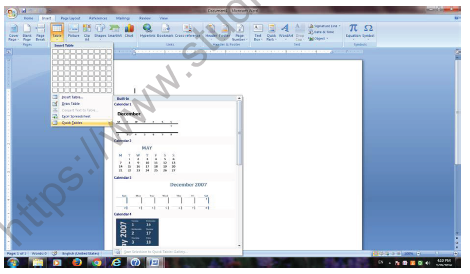
(ii) Use the Table menu
1. Click where you want to insert a table.
2. On the Insert tab, in the Tables group, click Table, and then, under Insert Table, drag to select the number of rows and columns that you want.
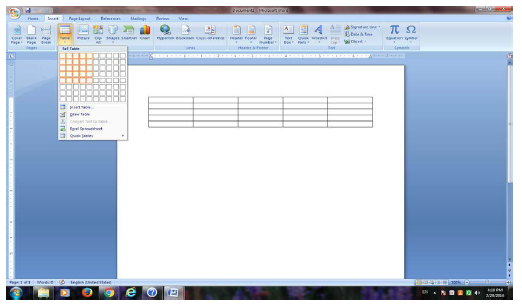
(iii) Use the Insert Table command
You can use the Insert Table command to choose the table dimensions and format before you insert the table into a document.
1. Click where you want to insert a table.
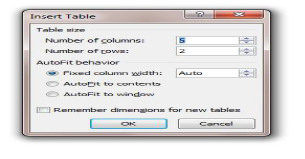
2. On the Insert tab, in the Tables group, click Table, and then click Insert Table.
3. Under Table size, enter the number of columns and rows.
4. Under AutoFit behavior, choose options to adjust the table size.
Inserting new row and Column:-
After inserting a table if you want to add/insert new row or new column then you can follow the following procedure:-
Add a row above or below
1. Click in a cell above or below where you want to add a row.
2. Under Table Tools, on the Layout tab, do one of the following:
• To add a row above the cell, click Insert Above in the Rows and Columns group.
• To add a row below the cell, click Insert Below in the Rows and Columns group
Add a column to the left or right
1. Click in a cell to the left or right of where you want to add a column.
2. Under Table Tools, on the Layout tab, do one of the following:
• To add a column to the left of the cell, click Insert Left in the Rows and Columns group.
• To add a column to the right of the cell, click Insert Right in the Rows and Columns group.
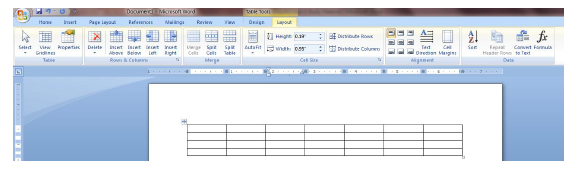
Merging the cells.
Merge (Combine/Join) cells
You can combine two or more table cells located in the same row or column into a single cell. For example, you can merge several cells horizontally to create a table heading that spans several columns.
1. Select the cells that you want to merge by clicking the left edge of a cell and then dragging across the other cells that you want.
2. Under Table Tools, on the Layout tab, in the Merge group, click Merge Cells.
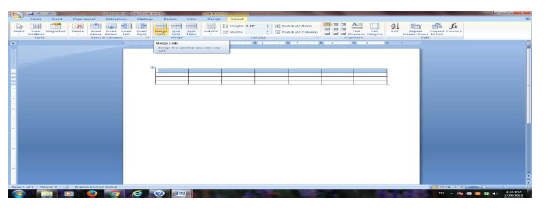
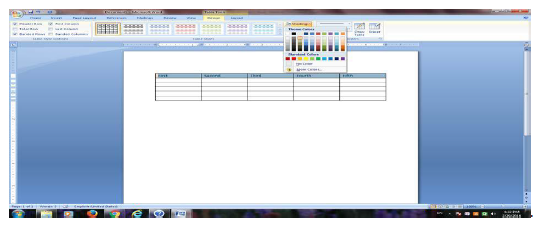
Filling the color in cells.
You can fill any color in a specific cell or group of cell to make it distinct from the other cell in the table by follow the following procedure;-
1. Select the cells that you want to fill with color by clicking the left edge of a cell and then dragging across the other cells that you want.
2. Under Table Tools, on the Design tab, click shading then select any color of your choice.
Alignment in the table (vertical and horizontal):-
Aligning text in columns and rows in Word is a matter of choosing how you want the text to line up vertically and how you want it to line up horizontally. Follow these steps to align text in a table:
1. Select the cells, columns, or rows, with text that you want to align (or select your entire table).
2. Go to the (Table Tools) Layout tab.
3. Click an Align button (you may have to click the Alignment button first, depending on the size of your screen).
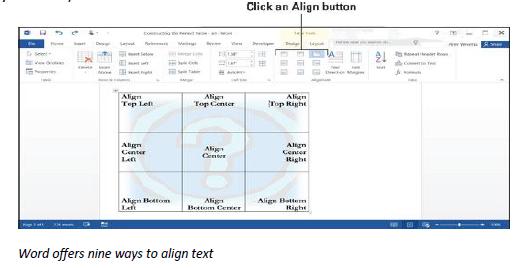
Table Creation In Word Concepts and Summary for Class 5 Computers
Download Chapter Summary: Class 5 Computers Table Creation In Word
Access structured revision notes for Table Creation In Word designed in alignment with the latest CBSE curriculum for Class 5 Computers. These summaries help clarify core themes and support effective daily study.
Concept Clarification for Table Creation In Word
Cross-reference your comprehension with comprehensive NCERT solutions for Class 5 to ensure absolute clarity across all sub-topics in this chapter.
Additional Study Resources for Class 5 Computers
Follow up your revision by attempting the interactive online Computers MCQ test and practice worksheets for this chapter to verify your mastery. All platform resources are free to access.
FAQs
You can download the teacher prepared revision notes for CBSE Class 5 Computer Science Table Creation In Word Notes from StudiesToday.com. These notes are designed as per 2026-27 academic session to help Class 5 students get the best study material for Computers.
Yes, our CBSE Class 5 Computer Science Table Creation In Word Notes include 50% competency-based questions with focus on core logic, keyword definitions, and the practical application of Computers principles which is important for getting more marks in 2026 CBSE exams.
Yes, our CBSE Class 5 Computer Science Table Creation In Word Notes provide a detailed, topic wise breakdown of the chapter. Fundamental definitions, complex numerical formulas and all topics of CBSE syllabus in Class 5 is covered.
These notes for Computers are organized into bullet points and easy-to-read charts. By using CBSE Class 5 Computer Science Table Creation In Word Notes, Class 5 students fast revise formulas, key definitions before the exams.
No, all study resources on StudiesToday, including CBSE Class 5 Computer Science Table Creation In Word Notes, are available for immediate free download. Class 5 Computers study material is available in PDF and can be downloaded on mobile.