

Official Class 5 Computers Revision Material: CBSE Class 5 Computer Science Multimedia Notes
Access comprehensive revision notes for Multimedia using the CBSE Class 5 Computer Science Multimedia Notes. Designed to align with the 2026-27 academic syllabus for Class 5 Computers, these concept summaries help students streamline their exam preparation and review complex topics efficiently.
Chapter-wise Concept Summaries: Multimedia
View or download the dedicated Multimedia revision resource below. Engaging with these structured concept notes daily ensures continuous academic progress and mastery of the 2026-27 curriculum for Computers.

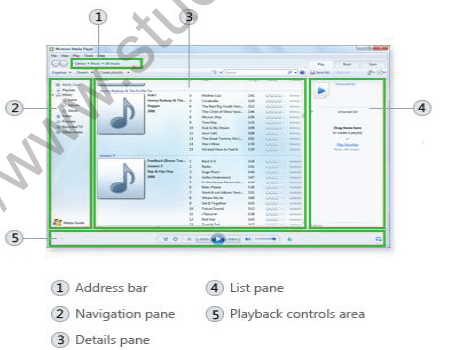
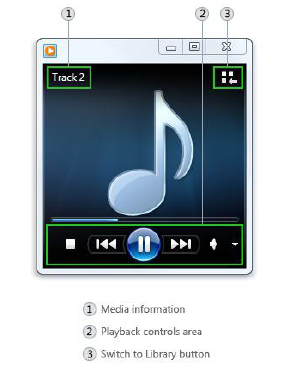
How to Play File:-
Go to File->Open then select the desired audio/ video file to play.
Sound recorder:-
You can use Sound Recorder to record a sound and save it as an audio file on your computer. You can record sound from different audio devices, such as a microphone that's plugged into the sound card on your computer. The types of audio input sources you can record from depend on the audio devices you have and the input sources on your sound card.
How to open and use:-
To record audio with Sound Recorder
1. Make sure you have an audio input device, such as a microphone, connected to your computer.
2. Open Sound Recorder by clicking the Start button . In the search box, type Sound Recorder, and then, in the list of results, click Sound Recorder.
3. Click Start Recording.
4. To stop recording audio, click Stop Recording.
5. (Optional) If you want to continue recording audio, click Cancel in the Save As dialog box, and then click Resume Recording. Continue to record sound, and then click Stop Recording.
6. Click the File name box, type a file name for the recorded sound, and then click Save to save the recorded sound as an audio file.

Movie Maker:-
You can import photos and videos from many different kinds of cameras and devices to your PC using Movie Maker. When you import photos and videos, they are copied from the camera or device to your PC. After that, you can use them in your movies in Movie Maker, and they'll appear in Photo Gallery too.
Here are some devices that you might import photos or videos from:
• A digital camera or phone that's connected to your PC with a USB cable
• A Secure Digital (SD), mini SD or CompactFlash storage card that's in a card reader
• A data CD or DVD
• A video camera that records to an internal hard drive or flash storage card
• A videotape that's in a digital video (DV) camera or High-Definition Video (HDV) camera
If you have a webcam built into your PC or connected to your PC with a USB cable, you can record live video from a webcam and add it to Movie Maker.
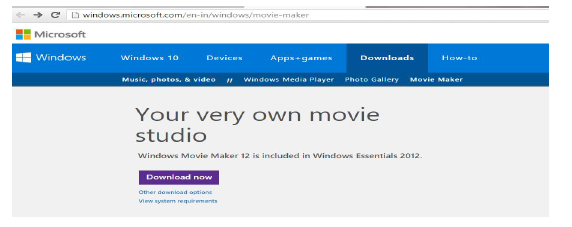
To use Windows Movie Maker, you have to download/installed the software from Microsoft website. Windows Movie Maker 12 is included in Windows Essentials 2012 software. The website link is given below:-
http://windows.microsoft.com/en-in/windows/movie-maker
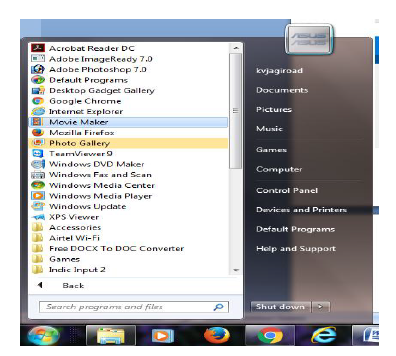
After successful installation. Movie maker will come in all program list as shown below:-
Movie Maker Interface:-
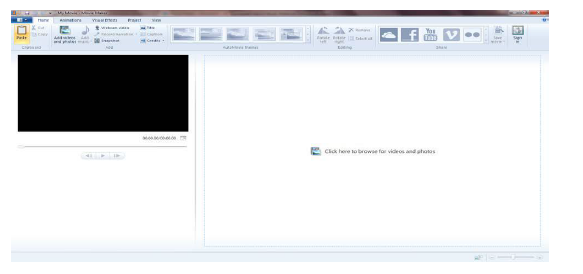
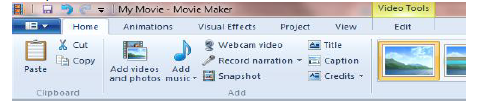
Inserting Image:- The first step to making a movie in Movie Maker is to add videos and photos. There are a few different ways to add them.
1. In Movie Maker, on the Home tab, in the Add group, click Add videos and photos.
2. In the Add Videos and Photos dialog box, open the folder that contains the photos or videos that you want to add, select the video files and photos, and then click Open.
To select multiple photos and videos, press and hold the Ctrl key, and then click each photo and video you want.
Setting timeline:- For different images, you can set the time duration for which it can display.
In Movie Maker, on the Edit tab, in the Adjust group, click Duration and set the desired duration for particular image.

Publishing movie:-
After you're done editing your project in Movie Maker, you can share your movie with family and friends by publishing it on the web.
To publish a movie on the web from Movie Maker
1. On the Home tab, in the Sharing group, click the website where you want to publish your movie.
2. Enter your user name and password, and then follow the steps to publish your movie. OR alternatively you can save your movie in your computer by having many inbuilt format using save movie option in Home Tab.
Assignment:-
Create an album of CCA activity using movie maker.
Revision Notes and Key Concepts for Class 5 Computers Multimedia
Download Chapter Summary: Class 5 Computers Multimedia
Review targeted chapter notes for Class 5 Computers Multimedia. Built according to official CBSE guidelines, these summaries highlight high-yield topics frequently tested in school evaluations.
Concept Clarification for Multimedia
Built using the official NCERT book for Class 5 Computers, these notes provide reliable academic guidance. Pair your summary review with our recommended NCERT solutions to master optimal problem-solving approaches.
Additional Study Resources for Class 5 Computers
Explore our broader library of printable assignments, chapter notes, and mock tests designed to support continuous revision and secure higher marks in CBSE assessments.
FAQs
You can download the teacher prepared revision notes for CBSE Class 5 Computer Science Multimedia Notes from StudiesToday.com. These notes are designed as per 2026-27 academic session to help Class 5 students get the best study material for Computers.
Yes, our CBSE Class 5 Computer Science Multimedia Notes include 50% competency-based questions with focus on core logic, keyword definitions, and the practical application of Computers principles which is important for getting more marks in 2026 CBSE exams.
Yes, our CBSE Class 5 Computer Science Multimedia Notes provide a detailed, topic wise breakdown of the chapter. Fundamental definitions, complex numerical formulas and all topics of CBSE syllabus in Class 5 is covered.
These notes for Computers are organized into bullet points and easy-to-read charts. By using CBSE Class 5 Computer Science Multimedia Notes, Class 5 students fast revise formulas, key definitions before the exams.
No, all study resources on StudiesToday, including CBSE Class 5 Computer Science Multimedia Notes, are available for immediate free download. Class 5 Computers study material is available in PDF and can be downloaded on mobile.